
Stop scrubbing.
Jump to the chapter.
ChapterJump is a free browser extension that pins the chapter list of any YouTube video next to the player. Search it, click a line and you are there. Save your own moments with a name and a note.
Free · No account · Two permissions

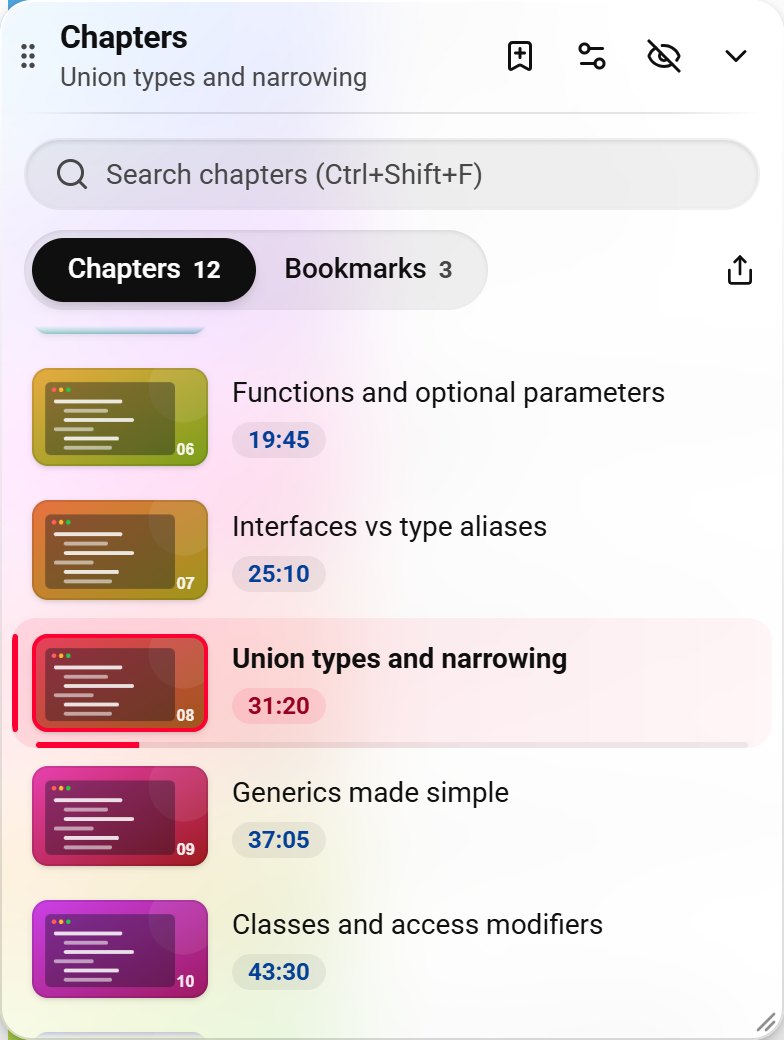
A two-hour lecture. A three-hour podcast. A course with forty topics. The part you need is always somewhere in the middle, behind a progress bar a few pixels tall.
So you scrub, overshoot and scrub again. ChapterJump keeps the map of the video on screen, so you can go straight there.
A map of the video, right next to the player.
One small panel that knows every chapter, finds any of them as you type and remembers the moments you care about.
-
Chapters
See where you are. Click where you want to be.
Every chapter with its thumbnail and start time. The one playing now is highlighted and fills up as the video goes on, and the list scrolls along with it. One click jumps to the exact start of a chapter.
Stays on screen in theater mode and fullscreen.
-
Search
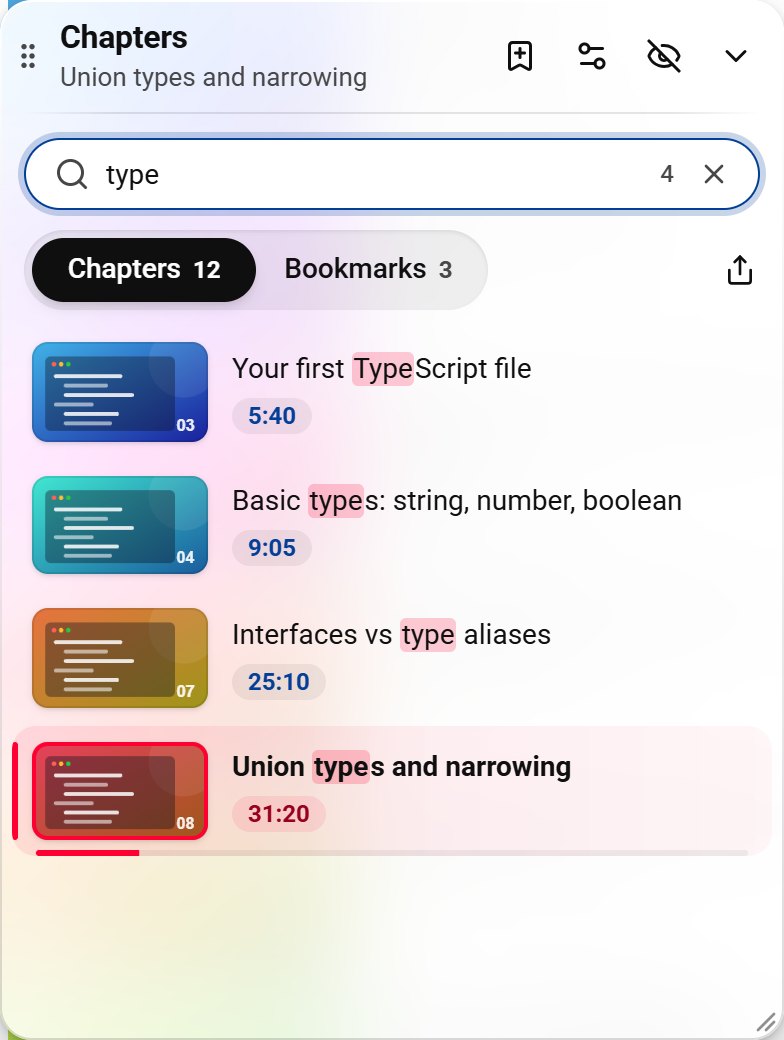
Type a word. Forty chapters become one.
The list filters as you type and highlights the match. Capitals and accents do not matter, and YouTube's own shortcuts stay quiet while you type, so the video never jumps by accident.
CtrlShiftF to search, Esc to clear.
-
Bookmarks
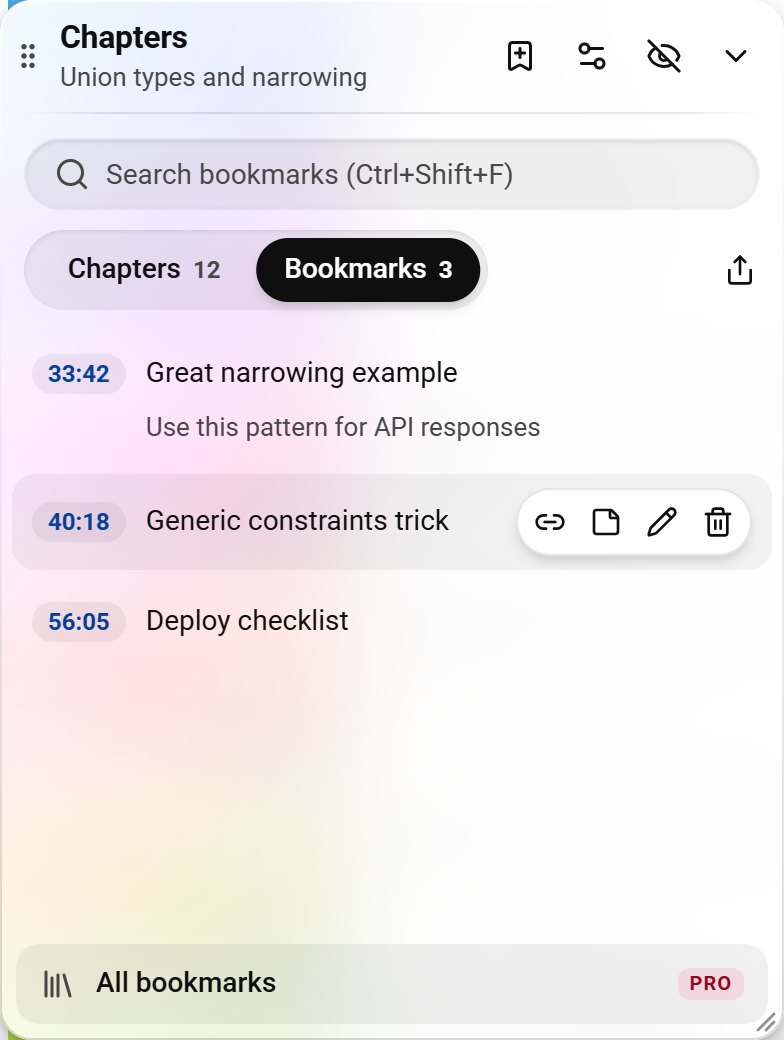
Keep the moments you will come back for.
Save the current second with one click, give it a name and add a note. Bookmarks work on every video, even the ones whose authors never added chapters.
Copy a link that opens the video at exactly that second.
Every bookmark you saved, on one page.
The library collects bookmarks and notes from all your videos. Search them together, then take them wherever you write.

Export in one click
Download everything as a file for your notes app, a spreadsheet or a script.
Copy as a timestamp list
Chapters or bookmarks as plain text or Markdown, ready for show notes, a study doc or a comment.
Find it by what you wrote
Notes are searchable, so you find the idea itself, not just the minute it was said.
Put it where it suits you.
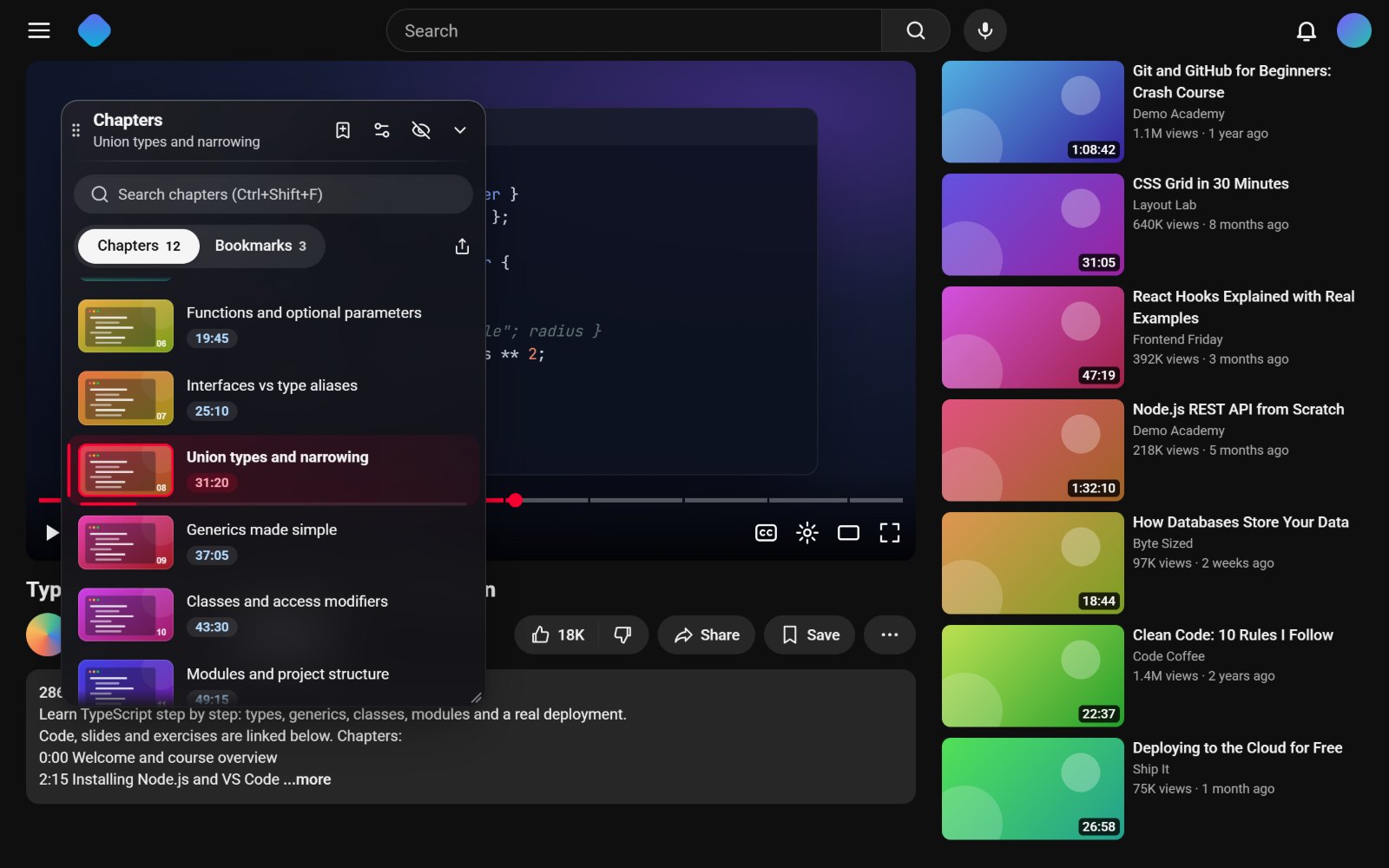
Drag the panel by its header, resize it from the corner or fold it into a slim bar. It remembers the spot across tabs and reloads, and follows YouTube's light or dark theme on its own.
Set up in under a minute.
No account and nothing to configure. Install it once and it is there on every video.
- Add it to ChromeOne click in the Chrome Web Store. It is free.
- Pin the buttonOpen the puzzle icon next to the address bar and pin ChapterJump. Showing and hiding the panel is then one click.
- Reload open tabsYouTube tabs that were open before need one refresh. New ones just work.
After that, open any video: the panel appears in the top-right corner with its chapters already loaded.
The details.
- Works on
-
Video pages and live stream replays (
youtube.com/watch,/live), in the default, theater and fullscreen view. Not on the YouTube home page or on Shorts. - Chapters come from
- The author's chapter list, timestamps in the description or the marks on the progress bar. A video without chapters still gets bookmarks.
- Shortcuts
-
- CtrlShiftF search chapters
- ⌘⇧F the same on Mac
- Esc clear the search
- Ctrl←→ previous or next chapter, built into YouTube
- Browsers
- Chrome, Microsoft Edge, Brave and other Chromium browsers on a computer.
- Made for
- Lectures and courses, coding tutorials, podcasts and interviews, research, music practice, reviews and recipes.
Free. And Pro is free for now.
The chapter panel is free with no limits and stays that way. Pro is for people who collect moments, and it is unlocked for everyone during early access.
| Feature | Freealways | Profree in early access |
|---|---|---|
| Floating chapter list with thumbnails | ||
| Instant search with highlighting | ||
| Unlimited timestamp bookmarks | ||
| Links that open at a chapter or bookmark | ||
| Drag, resize, collapse, light and dark | ||
| Bookmark library across all videos | ||
| Notes on bookmarks, searchable | ||
| Export to Markdown, CSV and JSON | ||
| Chapter loopRepeat one section for practice | ||
| Sponsor auto-skipSkips sponsor, ad and promo chapters, with Undo |
Founder bonus for early usersInstall during early access and you keep Pro for 60 more days after paid plans start, then get a founder discount.
Nothing leaves your browser.
Keeps your things on this deviceBookmarks, notes, panel position and settings, in the browser's local extension storage.
Lets the toolbar button workSo a click can show or hide the panel on the tab you are looking at.
Questions people ask.
Not here? See Support or write to rpetrov.tech@gmail.com.
Is it really free?
Yes. The chapter list, search, bookmarks, links, themes and layout are free with no limits and stay free. There is no trial, no card and no account.
How do I see all chapters of a YouTube video at once?
On YouTube itself the chapters are tucked into the description or a side panel that closes when you scroll. With ChapterJump installed, every video page shows the full chapter list next to the player, with thumbnails, start times and the current chapter highlighted. It stays visible in theater mode and fullscreen.
How do I bookmark a timestamp in a YouTube video?
Open the Bookmarks tab in the panel and save the current second with one click. Give it a name and, if you like, a note. Bookmarks work on any video, including ones without chapters, and all of them are collected in one searchable library.
How do I share a link to a specific moment or chapter?
Every chapter and bookmark in the panel has a copy link button. The link opens the video at exactly that second, so whoever you send it to lands on the right moment. You can also copy the whole chapter list as a plain text or Markdown timestamp list for notes or a comment.
What is Pro, and what happens when paid plans start?
Pro adds the bookmark library, notes, export, chapter loop and sponsor auto-skip. During early access every Pro feature is unlocked for everyone. When paid plans start, everyone who installed during early access keeps Pro for 60 more days and then gets a founder discount. Free features never move to Pro.
The panel does not appear. What should I do?
Reload the YouTube tab once: tabs that were open before ChapterJump was installed or updated do not have it yet. Make sure you are on a video page, not the home page or Shorts. If you hid the panel, click the ChapterJump button on the toolbar to bring it back.
A video shows no chapters
Chapters come from the video's author. If the author added none, there is nothing to read. Bookmarks work on every video, so you can mark the moments you need yourself.
Where are my bookmarks stored? Can I back them up?
Only in your browser, in the extension's local storage. Nothing is uploaded. Open "All bookmarks" at the bottom of the Bookmarks tab to see the library and export it as Markdown, CSV or JSON.
What happens if I uninstall?
The browser removes the extension together with its settings and bookmarks, so export them first if you want to keep them. A short page asks why you left; answering is optional and nothing is sent unless you write to us.
Does it work in Edge, Brave or on my phone?
It works in Chromium browsers on a computer, such as Microsoft Edge and Brave, which install extensions from the Chrome Web Store. It does not run in Firefox or Safari, or on phones, where browsers do not support extensions.
Will it slow YouTube down?
No. It adds one small panel and reads chapter titles and times that are already on the page. The only images it loads are chapter thumbnails from YouTube's own image server, and it never talks to any other server.
The panel is in my way. Can I move or hide it?
Drag it by the header, resize it from the bottom-right corner, fold it into a slim bar or hide it with the toolbar button. If it ever ends up off-screen, open the gear menu in the panel and choose "Reset position and size".
How do I reach you?
Write to rpetrov.tech@gmail.com or open "Help and feedback" in the panel's gear menu. Every message is read, usually within a day.
Try it on the next long video you open.
Need help? Visit Support.